A teleprompter that follows your voice
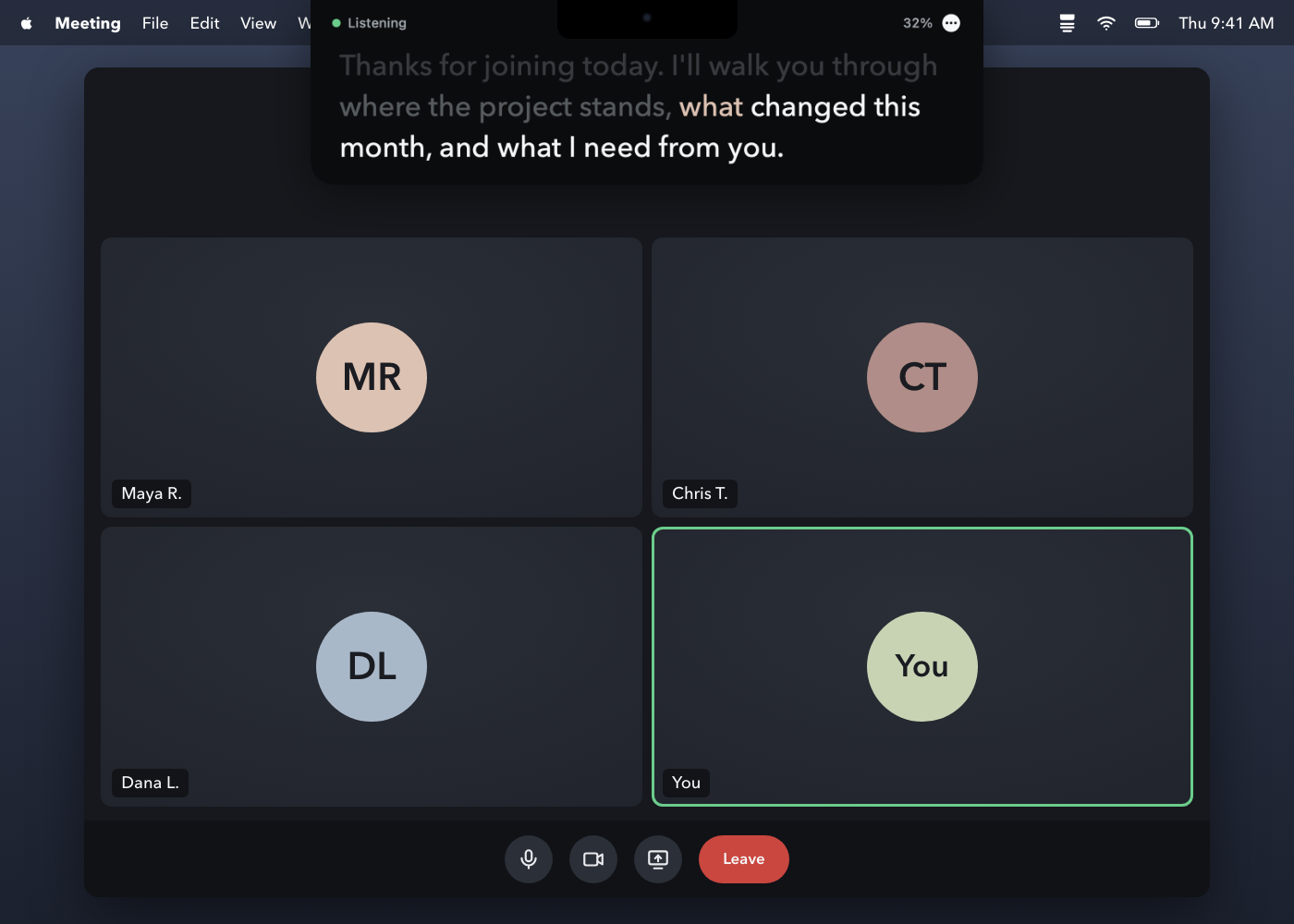
EyeCue puts your script in a small strip right under your MacBook's camera, so you can read it and still look at people.
Free and open source. macOS 14 or later. The first time you open it, macOS asks you to allow it once: see the steps.
One minute with EyeCue
Read your script without looking away
It keeps pace with you
It listens on your Mac and matches what you say to the script, a few words at a time. Words you've read dim, and the next word is highlighted.
It keeps your place
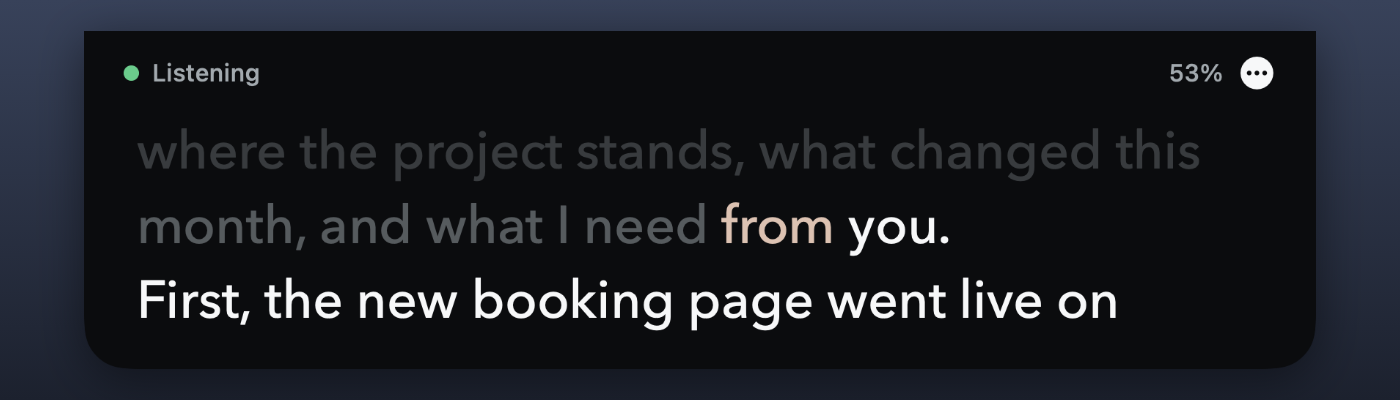
Pause, go off script or skip a sentence, and it finds your place again. If it ever guesses wrong, Control Option Up or Down nudges it back.
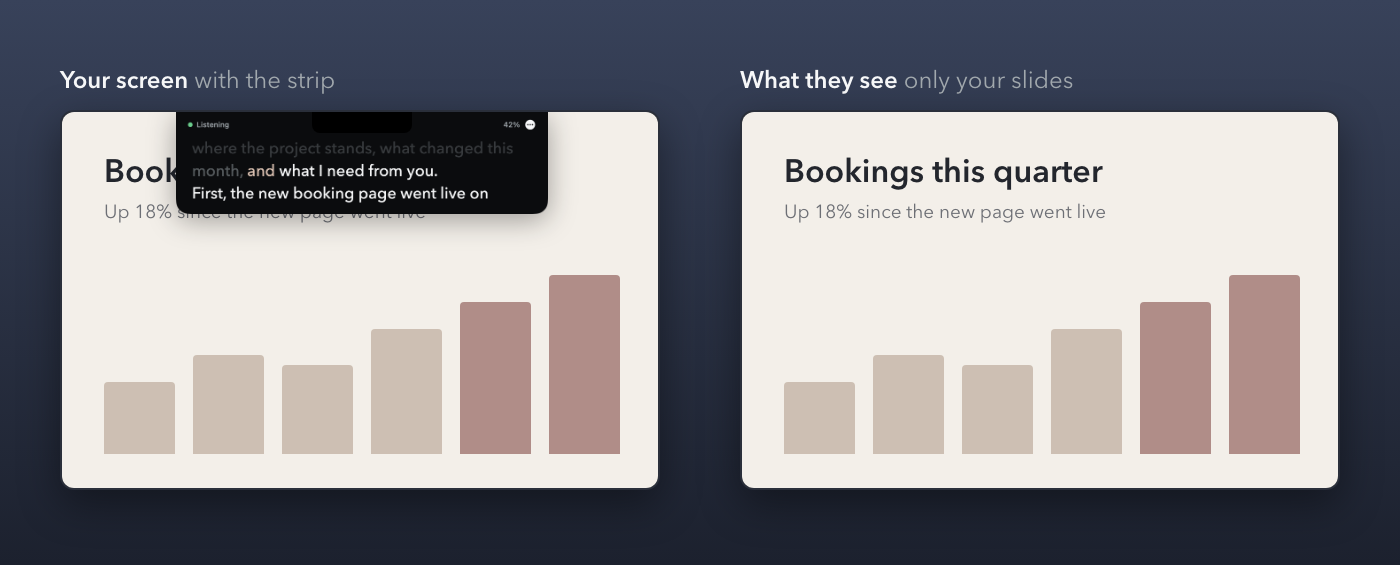
It stays out of your screen share
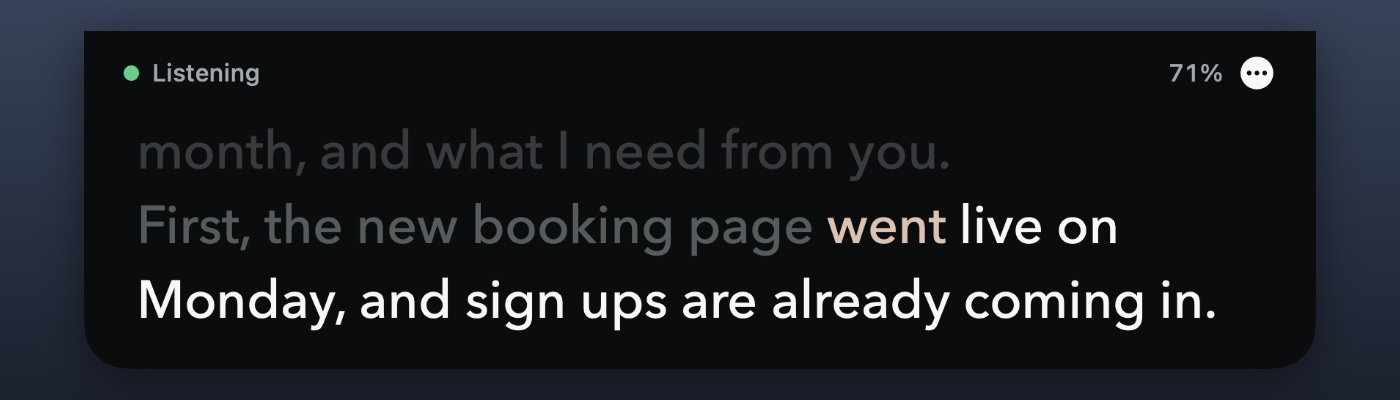
The strip asks macOS to leave it out of screen capture, so people see your slides and not your script. It passed a real Zoom share and recording. Other apps can differ, so do one test share before a big call.
Bring the script you already have
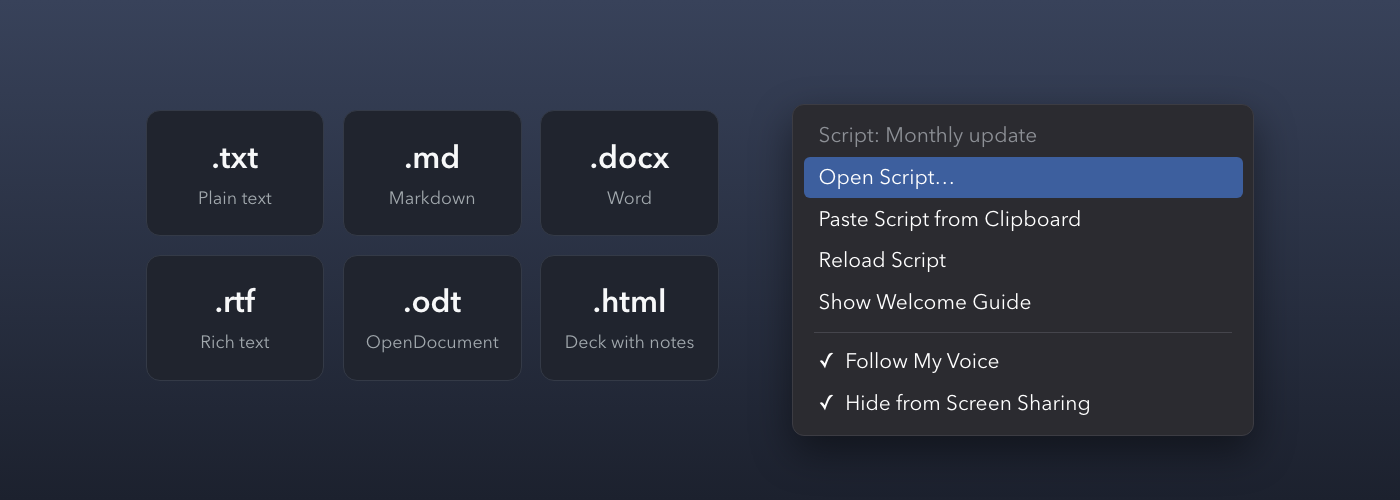
Open plain text, Markdown, Word, RTF or OpenDocument files, or just paste your script in. Slide decks saved as HTML with speaker notes load a slide at a time.
Your words stay on your Mac
Speech is recognized on your Mac. Audio is never recorded. The app runs in the macOS sandbox with no network permission, so macOS itself blocks it from the internet. There's no account, no analytics and no tracking. You can check all of this in the code.
Get it running
EyeCue isn't signed with a paid Apple developer certificate, so macOS asks you to allow it the first time. It takes a minute.
- Download EyeCue.zip, open it, and drag EyeCue to your Applications folder.
- Open EyeCue. macOS says it was blocked. Click Done.
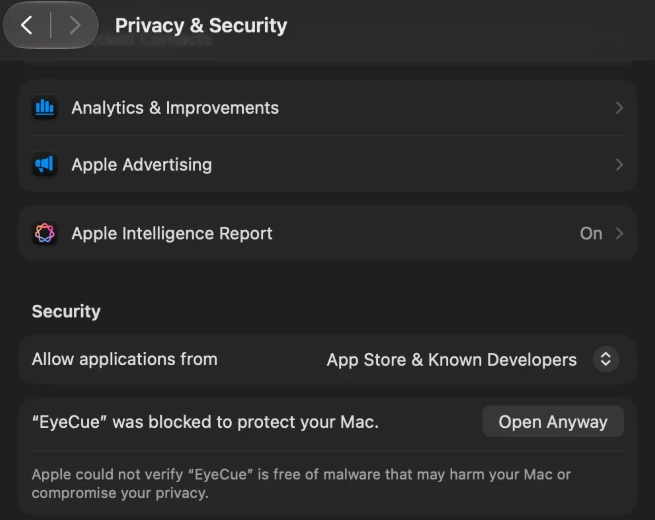
- Open System Settings > Privacy & Security, scroll down to Security, and click Open Anyway next to "EyeCue" was blocked.
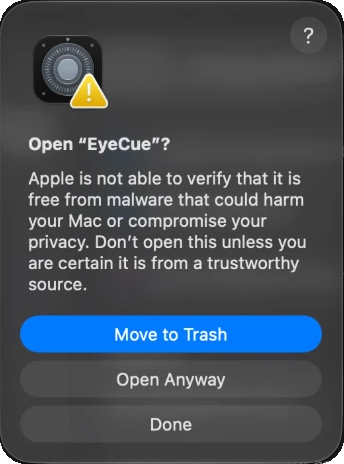
- In the box that pops up, click Open Anyway again (not Move to Trash), then confirm with your password or Touch ID. You only do this once.
- The strip appears under your camera with a short welcome guide. Press Control Option P and read it out loud. macOS asks to use the microphone and speech recognition the first time. Allow both.
To remove it, quit from its menu and drag it to the Trash. There's no installer and nothing else to clean up.
Or build it yourself
Building it yourself takes about a minute and skips the warning. You need the Xcode Command Line Tools.
git clone https://github.com/KevinPlanet9/eyecue.git
cd eyecue
scripts/build-app.sh --installGood to know
Why does macOS warn me about it?
Apps from outside the App Store need a paid Apple developer certificate to open without the warning, and EyeCue doesn't have one. The code is public, and the download is built by GitHub straight from that code, so anyone can check what's in it.
Is it really free?
Yes. It's open source under the MIT License, so you can use it, change it and share it.
Which Macs does it work on?
Any Mac on macOS 14 or later. It's best on a MacBook with a notch and the built-in camera. On other Macs the strip hangs from the top of the screen.
How do I open the menu or quit?
Click the three dots on the right side of the strip, or right-click the strip. Quit is at the bottom of the menu.
The strip doesn't move when I talk. What now?
Check that Follow My Voice is ticked in the menu, and that EyeCue is allowed under Microphone and Speech Recognition in System Settings > Privacy & Security. If it says on-device speech isn't available, turn on Dictation under Keyboard settings so macOS downloads the speech model.
Is there an iPhone version?
Not yet. It's Mac only for now.